Forecast Overview
Overview
This article covers key areas in the Forecast Module. The Forecast Module is the central hub where revenue teams update their forecast calls, inspect their CRM data, and get visibility into the business and forecasts.
Navigating the Forecast Module
To access Forecast, click it in the top nav.

Forecast Scope and Time Selector
Under the top nav, you can review your forecast by a specific time frame. You can look at the current and previous quarters. Or, define quotas and attainment for future quarters in Clari and view those quarters by changing your time scope.

Hierarchy Adjustment
To review different levels of hierarchy that roll up to you, select the level of the business you want to see from the hierarchy menu.

Forecast Tabs
Your organization probably has multiple Forecast Tabs for visibility into your different forecasts or various areas of your business. Find the different tabs you can access at the top of the grid.

Forecast Columns
In the Forecast grid, you'll see your Forecast column titles (Quota or Plan, Closed-Won or Booked, Commit, Upside). These describe the numbers in the grid.
Forecast column headers will display up to two lines. As the header name gets longer, the font size automatically adjusts to fit the full header name.

Forecast Users
The first column, NAME, lists the Forecast users (your teammates) on the left side. Click on a teammate to view more detail about their forecast in the right-side panel. If they lead a team, you can double-click on their names to see their team's call(s).
Forecast Call Fields
Your call fields (and other editable reference fields) have  in the top right of the field. To update the field directly, just click that edit button.
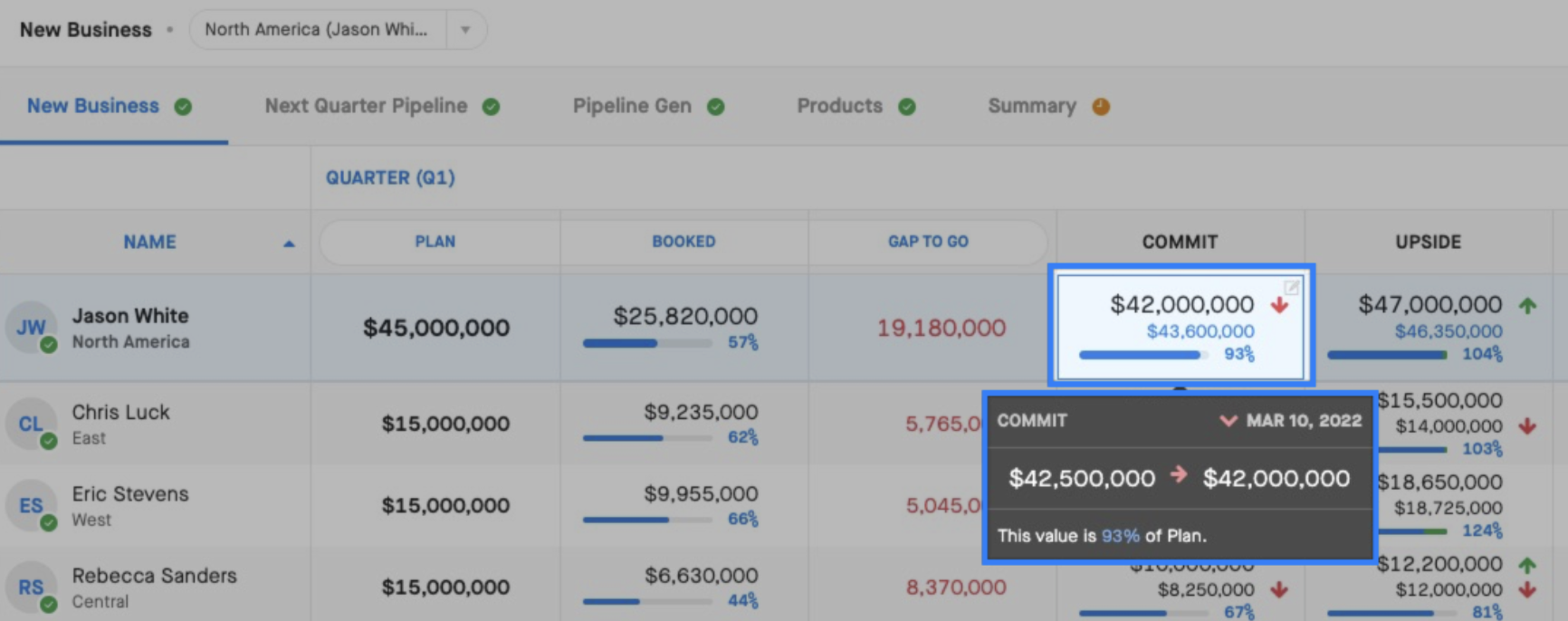
If you hover over a call field, you will see a summary of the call history.
Note: You can only submit a forecast if a valid value is entered; you won't be able to submit notes only.
Updating Other Reference Fields
When you look at the grid, all the editable fields have an edit button in the top right of the field. To update the field directly, just click that edit button and make your changes.
Forecast Call History
After selecting a call field, you'll see the forecast call history and call notes in the right-side panel. If you have teammates reporting to you, you'll see your team's call information as well.
Note: You can hover over any week to see additional details.
You can see Forecast History data in the right-side panel for these fields when you click on a field in the grid:
- Forecast field: See how your Forecast has changed each week. You can also see your historical CRM total values in addition to your Forecast.
- Quota field: See how your Booked/Closed value changed each week.
- Read-Only field: See how your read-only field changed each week.

To inspect the historical data for any of the field types listed above, just hover over the field, and you'll see more info:

Adaptive Revenue Metrics
Clari performs certain calculations in Forecast to keep mental math to a minimum for you. 👍
Click on a metric in the grid. Then, the right-side panel displays details about how the metric is calculated.

Forecast Expanded View
To see which opportunities contribute to your call, you can access Forecast Expanded View.
To do so, click Expand Details:

Forecast Status Indicator
Quickly understand if your forecast calls are complete (green) or if they need updates (yellow) at the individual, team, and organizational levels. If there isn't a call yet, you'll see a red X.

