This option lets you control whether users see suggested contact or lead records when they start typing in the recipient field in the Gmail compose window.
When a Groove user logs or syncs inbound and outbound emails from Google to Salesforce, it tries to find the standard email address.

As well as the email addresses in the 'Email Alias 1' OR 'Email Alias 2' fields associated with the Groove User's Profile in Salesforce.

Important: If a user's email alias is not configured in Salesforce, any email sent/received from it will not be logged when the 'Exact Match Ownership' setting is enabled.
If the setting is disabled, Groove will associate the email to the account from which the email is picked up in the sync.
Ignored Attachment Types*
Applies to: Groove for Gmail; Groove Email Sync; Isolated Mode; API Mode;
When Groove logs an attachment, you can ignore certain file types. This helps reduce clutter and can help you filter out images from people's signatures (png, jpeg, jpg).
To use this option, enter a comma-separated list of file types to ignore (i.e., jpg, png, jpeg). Note: a . is not required before the file type.
Applies to: Groove for Gmail; Groove Email Sync; Isolated Mode; API Mode;
When Groove logs or syncs an email, it can save attachments depending on this option.
This numeric field allows you to specify a file size limit (in bytes) for email attachments. If the file size exceeds the limit, the email attachment will not be saved. The email will still be logged in Salesforce.
1. If the field is left blank, no limit applies. Attachments of any size will be saved.
2. No attachments will be logged if the field is set to 0.
3. Here are other examples of a file size limit:
-
500000 = Allow attachments up to 500 Kilobytes (½ Megabyte)
-
1000000 = Allow attachments up to 1 Megabyte
-
5000000 = Allow attachments up to 5 Megabytes
Applies to: Groove for Gmail; Groove Realtime Calendar Sync; Email Sync; Isolated Mode; API Mode;
Groove includes an Email Performance dashboard that displays the activity performance of individual users. By default, users can view their performance, and managers can view the performance of all their reporters. Groove uses the Salesforce role hierarchy to understand which users report to which user (their manager).
This option allows you to control whether users can also view the performance data of their peers. This means they get to see the same data as their manager about all users on the same team (therefore, the email performance is "transparent" to all users on the same team).
Applies to: Groove for Gmail; Groove Realtime Calendar Sync; Isolated Mode; API Mode;
When Groove logs or syncs calendar events from Google to Salesforce, it tries to find related Leads and Contacts by matching the invitees' email addresses with Salesforce records.
This option lets you control what happens if no related record is found on an event.
If this setting is enabled, Groove will ignore any calendar events without a Salesforce contact included and will not map those events.
If this setting is disabled, all of your calendar events (regardless of who is included in the event) will be mapped over to Salesforce.
Activating this option is helpful to avoid events unrelated to customers being synced from Google to Salesforce. For example, a user's dentist appointment would not be synced since the dentist is not a contact or lead in Salesforce.
Applies to: Groove for Gmail; Groove Realtime Calendar Sync; Groove Email Sync; Isolated Mode; API Mode;
When Groove auto-logs or syncs emails and calendar events from Google to Salesforce, it tries to find related Salesforce records. Besides finding the related Lead or Contact, Groove also tries to find the related Opportunity or Case.
This option allows you to tweak the search logic applied when Groove tries to find related Opportunities or Cases. Put any of the numbers below according to your business processes.
-
0 = Don't try to find the related Opportunity or Case. Just relate it to the right Lead or Contact
-
11 = Find the related Opportunity among all my open Opportunities
-
110 = Find the related Opportunity among all my open Opportunities (Restricted*)
-
12 = Find the related Opportunity among all my opportunities
-
120 = Find the related Opportunity among all my opportunities (Restricted*)
-
13 = Find the related Opportunity among all open Opportunities
-
130 = Find the related Opportunity among all open Opportunities (Restricted*)
-
14 = Find the related Opportunity among all Opportunities
-
140 = Find the related Opportunity among all Opportunities (Restricted*)
-
21 = Find the related Case among my open Cases
-
22 = Find the related Case among my Cases
-
23 = Find the related Case among all open Cases
-
24 = Find the related Case among all Cases
-
30 = Custom Object Logging
Restricted means that Groove will only find opportunities directly associated with a contact via an opportunity contact role. Otherwise, Groove will only extend the search by looking at existing opportunities under the contact's account.
Reparent Email Attachments
Applies to: Groove for Gmail; Groove Email Sync; Isolated Mode; API Mode;
When Groove logs or syncs an email, it also saves email attachments. This option allows you to control whether you want these email attachments (if deactivated) to be saved in the "Files and Attachment" section of the Task record that Groove creates in Salesforce or (if activated) to be saved in the "Files and Attachment" section of the parent Lead/Contact/Opportunity/Case/etc. Records that Groove saved the Task record under (which is why it's called "reparenting").
Reparenting has the advantage that specific attachments can be much easier spotted instead of traversing through all Task records, e.g., a contact's activity history. Also, Groove won't save already saved attachments (duplicate prevention).
Respect Sharing Rules when Logging*
When a Groove user logs events or emails from Google to Salesforce, it tries to find related contacts, leads, opportunities, or cases.
This option is only relevant if you enable sharing rules and not all users can see all records. It controls whether you want Groove to consider only the Salesforce records the Groove user has access to (Enabled) or any Salesforce records (Disabled). Disabling this option doesn't mean that the user will get access to these records.
Search and Select-Object
Applies to: Groove for Gmail; Isolated Mode; API Mode;
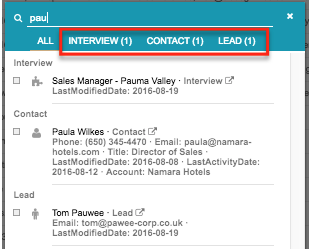
Groove for Gmail allows users to log emails and calendar events and "search and select" the related records. By default (meaning, if the field is left blank), Groove searched in these objects for the search query the user entered: Leads, Contacts, Accounts, Opportunities, and Cases.
This option allows you to customize which standard or custom Salesforce objects Groove should search for the search query. Put a list of comma-separated API names of the respective Salesforce objects. Groove will disregard all Salesforce objects that don't have an activity history.
Note: The default objects won't be included in search results if you use this field. So you have to add them explicitly if you still want your users to see search results from Leads, Contacts, Accounts, Opportunities, and Cases.
Use Groove Templates Only
Groove allows users to access Groove templates and Salesforce templates directly from Gmail.
This option lets you control whether users can access only Groove templates from Gmail. This helps avoid confusion and ensures all the templates created and updated by users are also accessible in Groove Fl
